Skip to content
Final Fantasy XVI Logo

Controls

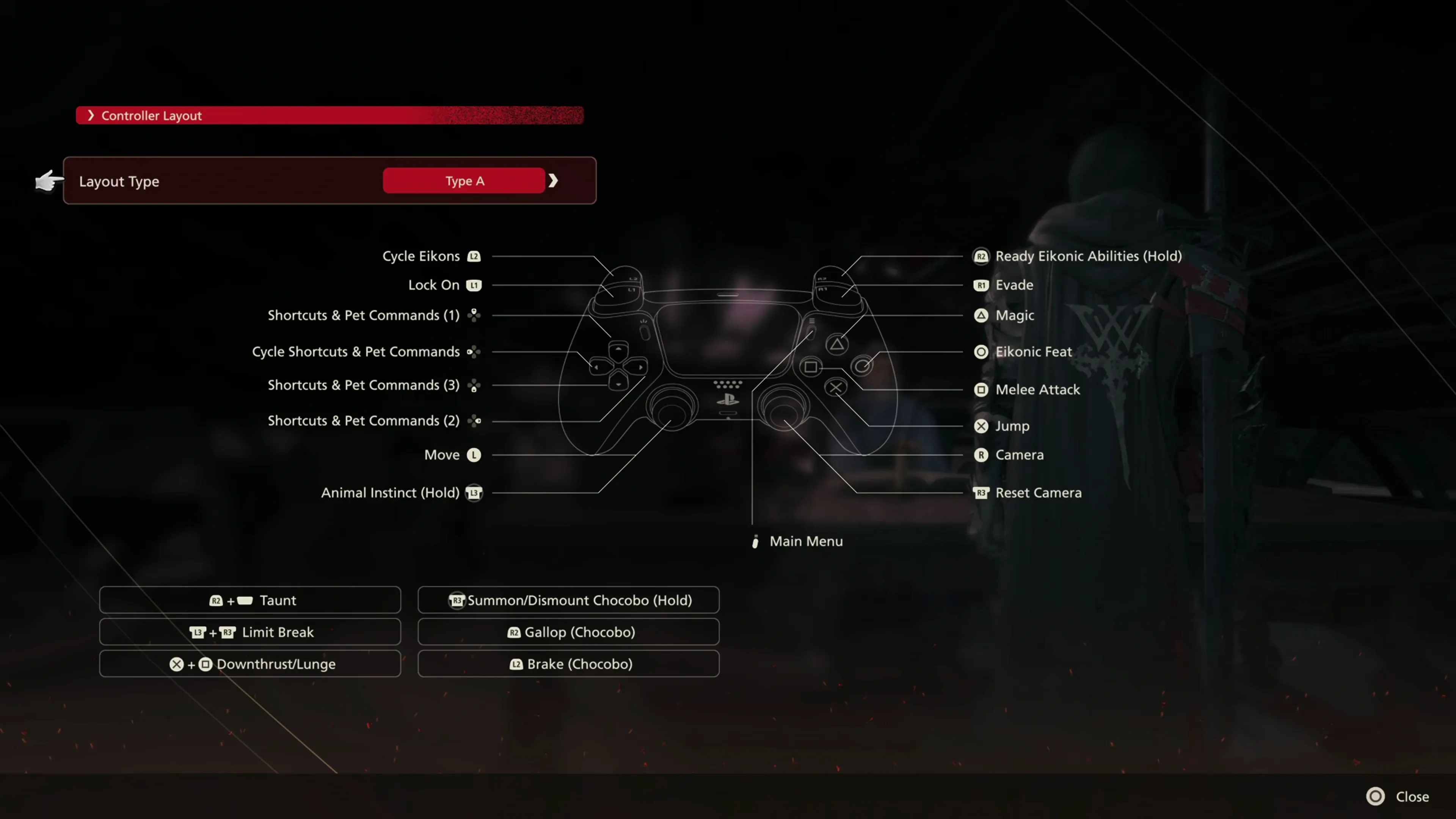
Control setup screen in the main menu of the game

Basic Movement & Camera

The section below outlines the controls for the standard (“Type A”) controller configuration:

Button Action
PlayStation Analog Left StickXbox Analog-Left ButtonNintendo Switch Left-Stick Button Move
PlayStation Analog Right StickXbox Analog-Right ButtonNintendo Switch Right-Stick Button Camera
PlayStation Cross or X ButtonXbox A ButtonNintendo Switch B Button Jump
PlayStation Circle ButtonXbox B ButtonNintendo Switch A Button Eikonic Feat
PlayStation Triangle ButtonXbox Y ButtonNintendo Switch X Button Magic
PlayStation Square ButtonXbox X ButtonNintendo Switch Y Button Melee Attack
PlayStation Directional Pad Left ButtonXbox Directional-Pad-Left ButtonNintendo Switch Pro-D-Pad-Left Button Cycle Shortcuts & Pet Commands
PlayStation Directional Pad Up ButtonXbox Directional-Pad-Up ButtonNintendo Switch Pro-D-Pad-Up Button PlayStation Directional Pad Right ButtonXbox Directional-Pad-Right ButtonNintendo Switch Pro-D-Pad-Right Button PlayStation Directional Pad Down ButtonXbox Directional-Pad-Down ButtonNintendo Switch Pro-D-Pad-Down Button Shortcuts & Pet Commands
PlayStation L3 ButtonXbox Analog-Left-Button ButtonNintendo Switch Left-Stick-Click Button Animal Instinct
PlayStation R3 ButtonXbox Analog-Right-Button ButtonNintendo Switch Right-Stick-Click Button Reset Camera
PlayStation PS5 Options/Menu ButtonXbox Start ButtonNintendo Switch Plus Button Main Menu
PlayStation L1 ButtonXbox LB ButtonNintendo Switch L Button Lock On
PlayStation R1 ButtonXbox RB ButtonNintendo Switch R Button Evade
PlayStation R2 ButtonXbox RT ButtonNintendo Switch ZR Button Ready Eikonic Abilities (Hold)
PlayStation L2 ButtonXbox LT ButtonNintendo Switch ZL Button Cycle Eikons
PlayStation R2 ButtonXbox RT ButtonNintendo Switch ZR Button Ready Eikonic Abilities
PlayStation R2 ButtonXbox RT ButtonNintendo Switch ZR Button + PlayStation Select Button Taunt
PlayStation R3 ButtonXbox Analog-Right-Button ButtonNintendo Switch Right-Stick-Click Button (Hold) Summon/Dismount Chocobo
PlayStation L3 ButtonXbox Analog-Left-Button ButtonNintendo Switch Left-Stick-Click Button + PlayStation R3 ButtonXbox Analog-Right-Button ButtonNintendo Switch Right-Stick-Click Button Limit Break
PlayStation R2 ButtonXbox RT ButtonNintendo Switch ZR Button Gallop (Chocobo)
PlayStation Cross or X ButtonXbox A ButtonNintendo Switch B Button + PlayStation Square ButtonXbox X ButtonNintendo Switch Y Button Downthrust/Lunge
PlayStation L2 ButtonXbox LT ButtonNintendo Switch ZL Button Brake (Chocobo)

Camera Tips

Final Fantasy XVI defaults to a very low camera sensitivity setting for the controller. This means that you’ll quite often find yourself holding the PlayStation Analog Right StickXbox Analog-Right ButtonNintendo Switch Right-Stick Button stick trying to rotate the camera into position during battle, only for it to move extremely slowly, or constantly having to press PlayStation Analog Right StickXbox Analog-Right ButtonNintendo Switch Right-Stick Button to reset the camera position.

Therefore, it is recommended that you boost the camera sensitivity settings up from their default position of “3” to somewhere closer to 6, 7, or 8, depending on your personal preference.

Adjusting the camera sensitivity in the system menu

Shortcuts and Inventory Items

During battle, you can only set up three item shortcuts, and as a result, you will only be able to access three of your inventory items during battle. Navigate to the “Items” tab in the main menu and press the PlayStation Square ButtonXbox X ButtonNintendo Switch Y Button button to add one of your inventory items to the controller shortcuts so you can press PlayStation Directional Pad Up ButtonXbox Directional-Pad-Up ButtonNintendo Switch Pro-D-Pad-Up Button, PlayStation Directional Pad Right ButtonXbox Directional-Pad-Right ButtonNintendo Switch Pro-D-Pad-Right Button, or PlayStation Directional Pad Down ButtonXbox Directional-Pad-Down ButtonNintendo Switch Pro-D-Pad-Down Button to use it.

Unfortunately, this means you’re going to have to make some tough decisions about which items you want to use. Activating both Grey Consumable Item IconStrength Tonic and Purple Consumable IconLionheart Tonic means you’ll only have room for Grey Consumable Item IconPotions or Grey Consumable Item IconHigh Potions. Activating Red Consumable IconLast Elixir will take up a spot and never get used unless Clive is KO’d (and the same with Purple Consumable IconElixirs). You’ll have some tough decisions to make as you play through the game, and what you select will have to depend on your playstyle.

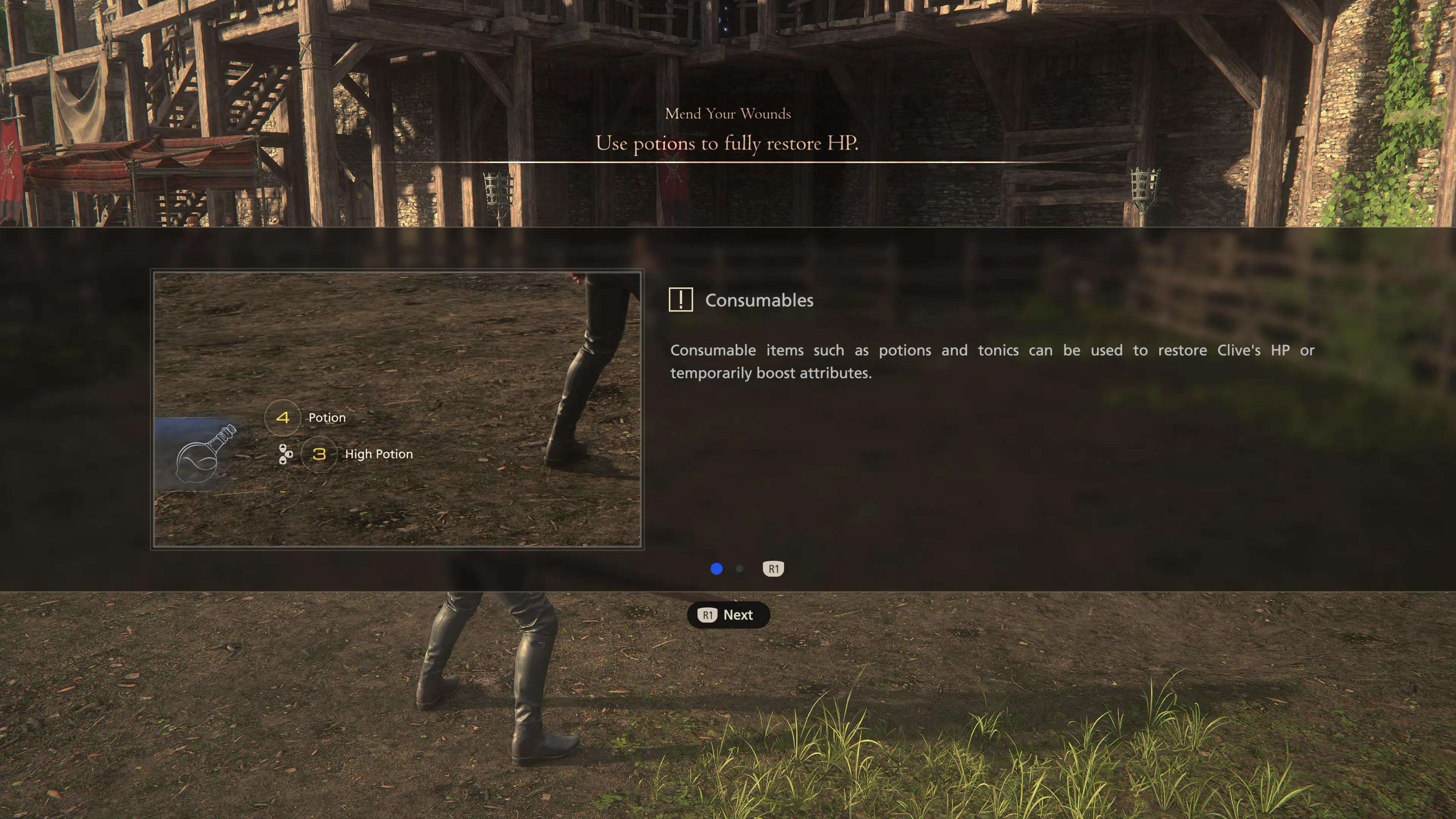
Using potions to restore health during the training session with Lord Murdoch